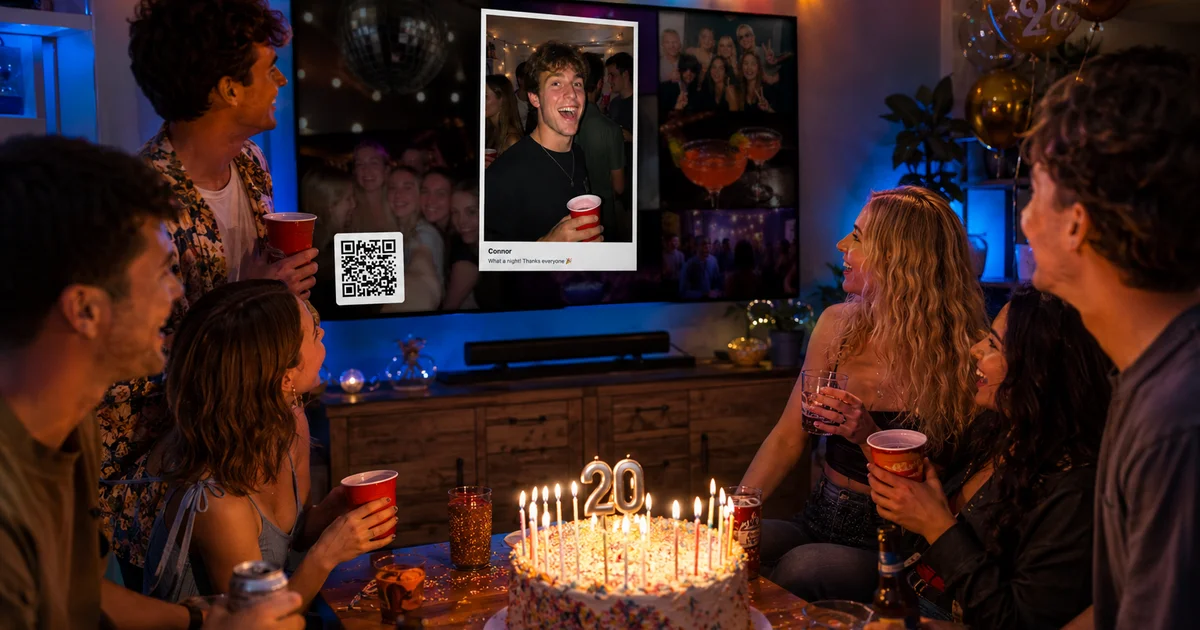
Displaying Live Party Photos on Your Amazon Firestick
Live Party Photos offers a unique way to showcase event photographs during weddings, parties, and corporate events via real-time slideshows. If you're using an Amazon Firestick, you can effortlessly stream these images onto your TV using the built-in Silk Browser. Here's a straightforward guide to get you started.
Step 1: Open the Silk Browser on the Firestick
To begin, ensure your Amazon Firestick is connected to your TV and powered on. From the main menu, navigate to the Amazon App Store and search for the Silk Browser if it is not pre-installed. Install it and open the browser.
Step 2: Visit the Live Party Photos Device Link
Once the Silk Browser is open, enter the following URL in the address bar: livepartyphotos.com/connect. This link will direct you to a page where you will see a unique code displayed.
Step 3: Enter the Code on Your Live Party Photos Account
On your smartphone or computer, log into your Live Party Photos account. Navigate to the album containing the photos you wish to display. Locate the 'Slideshow' section to find a field to input the unique code shown on your Firestick's Silk Browser.
After entering the code, your Firestick browser will automatically load the slideshow, allowing you to display Live Party Photos in real-time.
Step 4: Disable the Screensaver
To ensure uninterrupted viewing, it's wise to disable the screensaver on your Amazon Firestick. Check out our detailed guide on how to do this.
Set up your first album in minutes at livepartyphotos.com and transform your event's atmosphere.
Enjoy Seamless Event Slideshows
With these few simple steps, you can enjoy a seamless display of slideshows on your Amazon Firestick during any event. Try Live Party Photos free and elevate the visual experience at your gatherings.